 WispBinder
Check your office computer in 3 steps DRAFT
Free and read-only. It looks at security settings on one Windows computer. It changes nothing, and your results stay on that computer.
This check runs on a Windows computer. You seem to be on a phone, tablet or Mac. Open this page on the Windows computer you use for client work.
1Download
Download the free Windows check
The file is called WispBinder-Check.cmd. It goes to your Downloads folder.
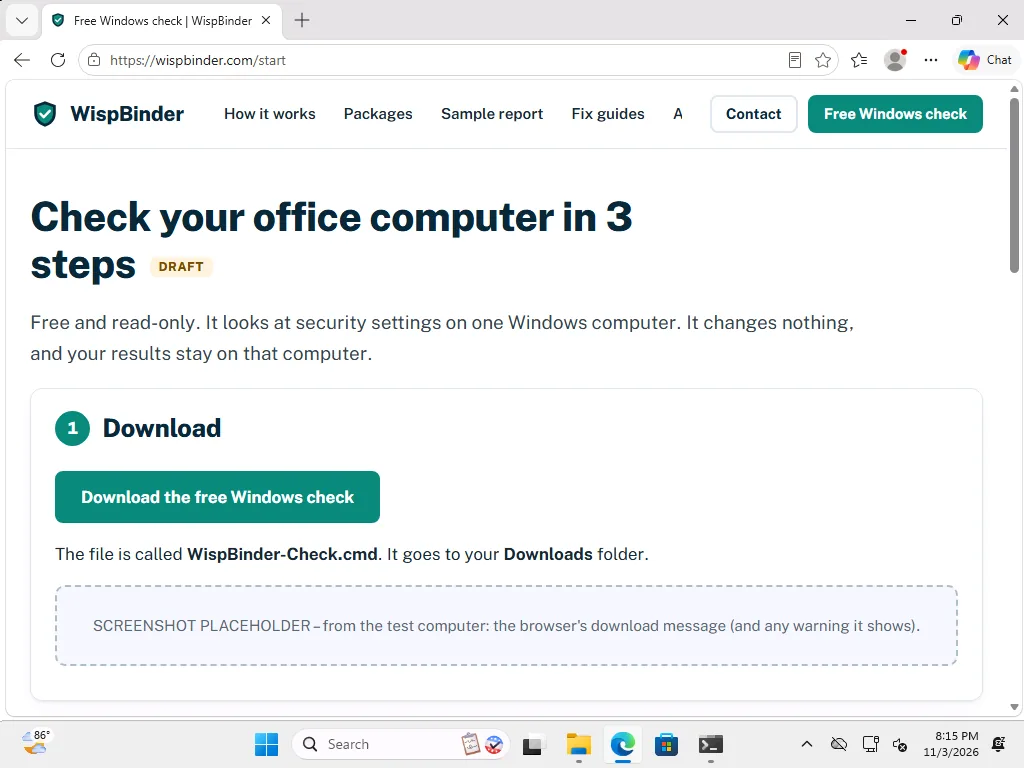
Your browser may warn that the file "could harm your device". Click Keep (in some browsers it is under … or See more). The warning appears because the file is a script that is not code-signed yet, not because something was found in it.
2Open it and click "Yes"
Double-click WispBinder-Check.cmd in your Downloads folder (or click Open file in the browser's download list).
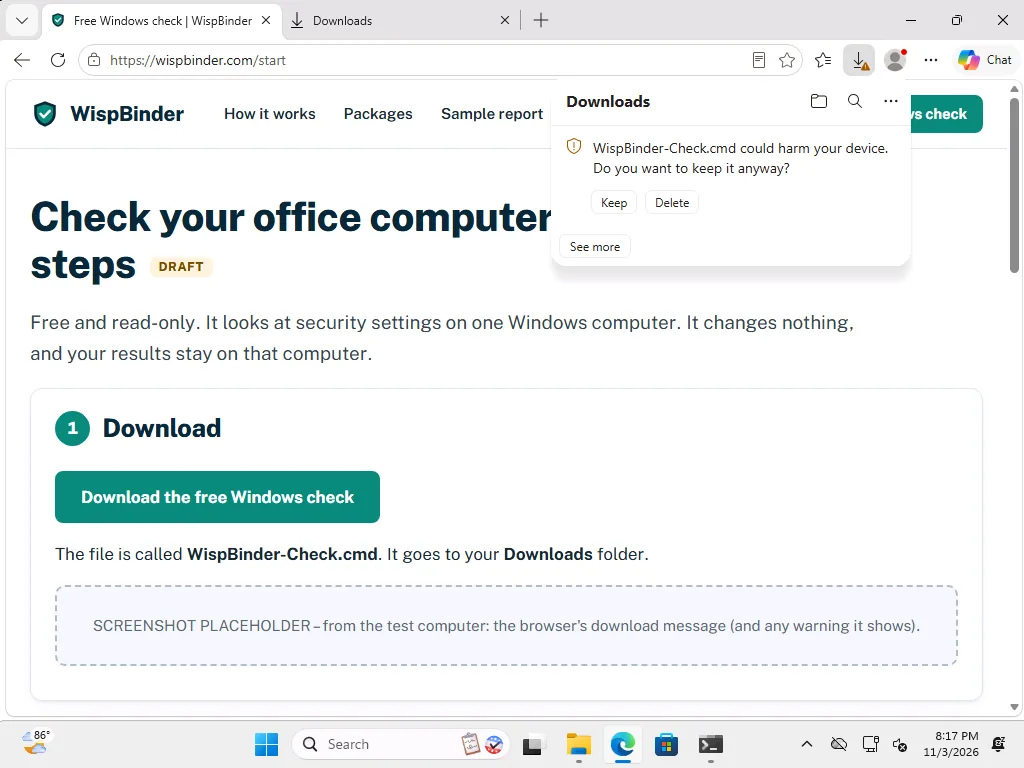
Windows shows "Open File – Security Warning" with Publisher: Unknown Publisher, because the file is not code-signed yet. Click Run.
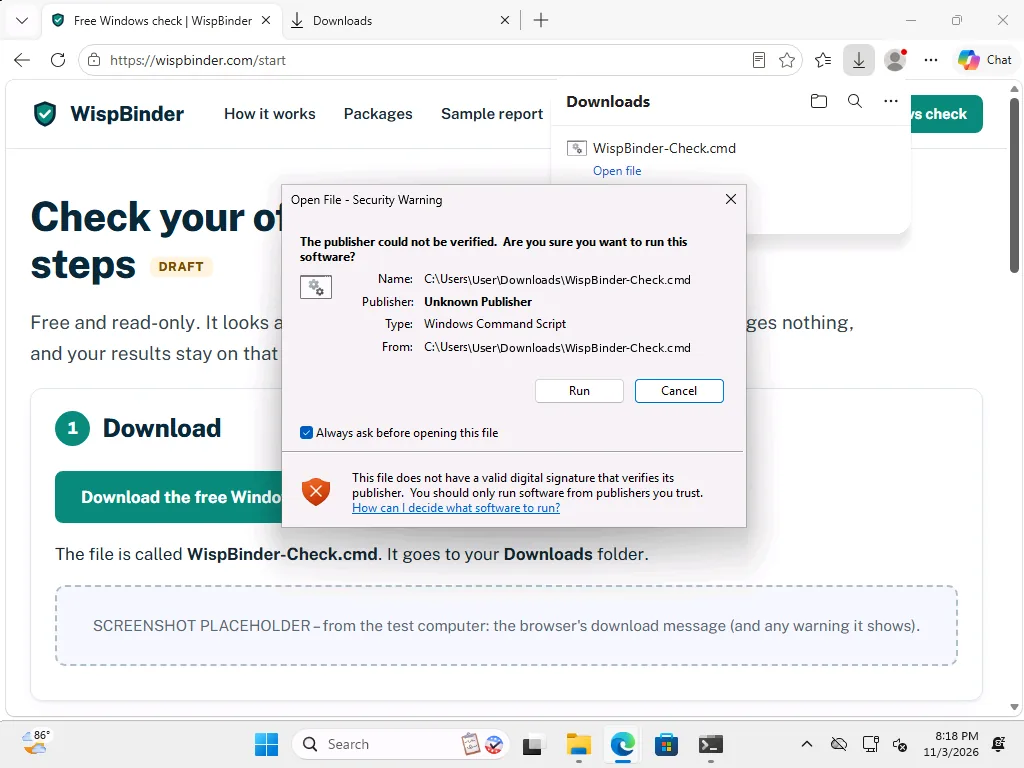
Then Windows asks "Do you want to allow this app to make changes to your device?" for Windows Command Processor. Click Yes, then wait one or two minutes.
Two black windows are now open for a short time: the first one shows how long it has been waiting (it stops waiting after 6 minutes), and a second one, marked Administrator, runs the check and closes by itself. Both are expected; you do not need to type anything in them.
On some computers a blue window "Windows protected your PC" appears instead. Click More info, then Run anyway. To read or verify the file first, see "For IT staff" below.
3Drag your result file onto the page
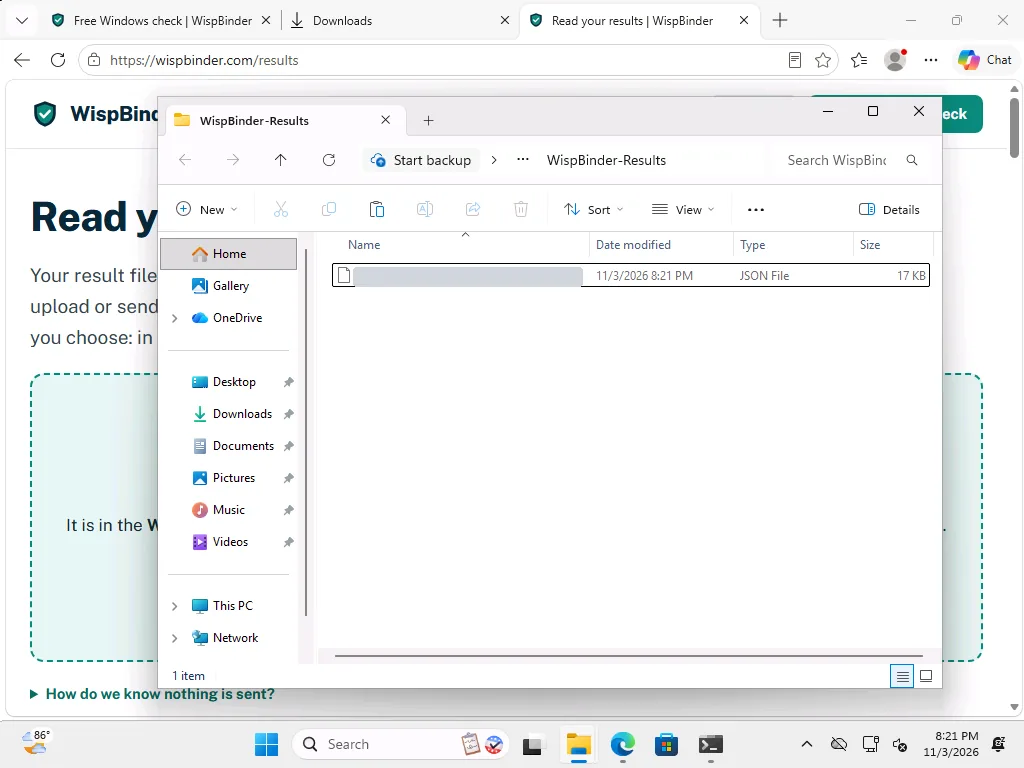
When the check is done, two windows open by themselves: the WispBinder results page in your browser, and your WispBinder-Results folder with the result file highlighted.
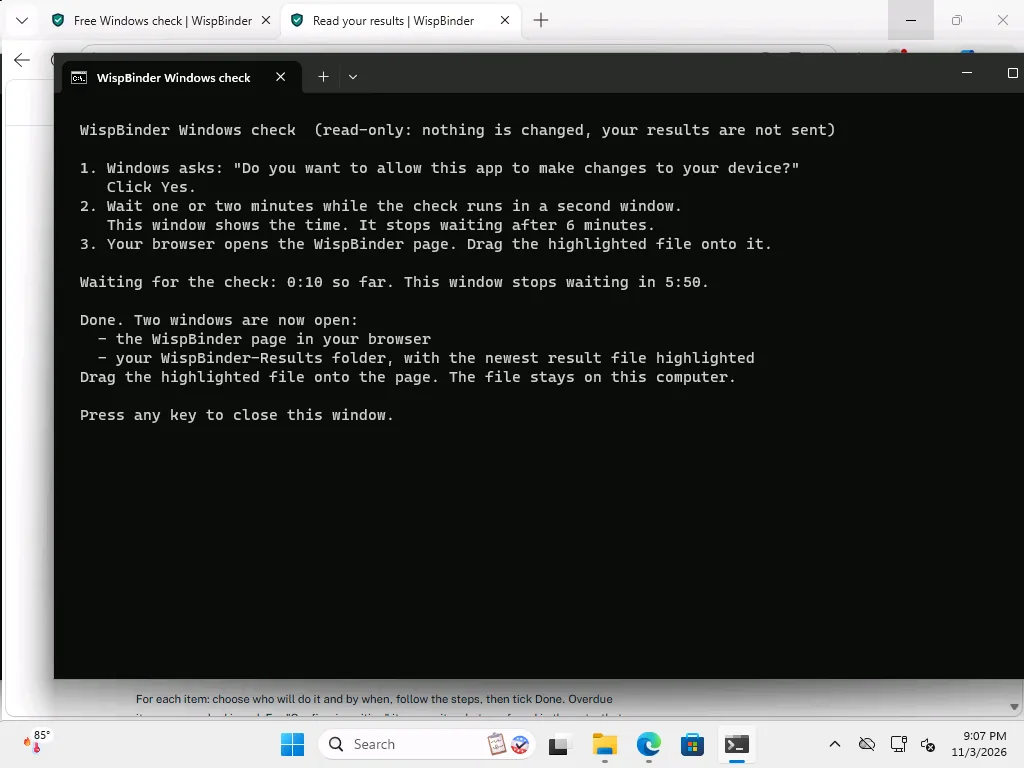
Drag the highlighted file onto the results page. You will see what was found and what to do next. The file is read inside your browser and is not uploaded.
If dragging is awkward, click Choose the file on the results page instead, open the WispBinder-Results folder on your Desktop and pick the file.
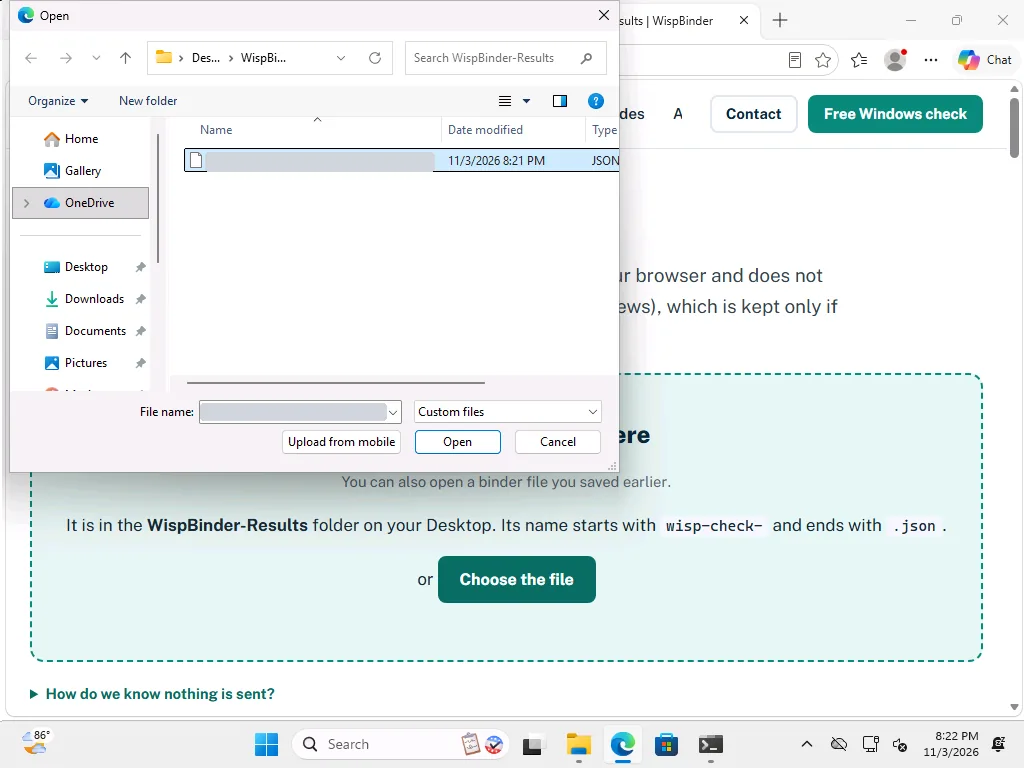
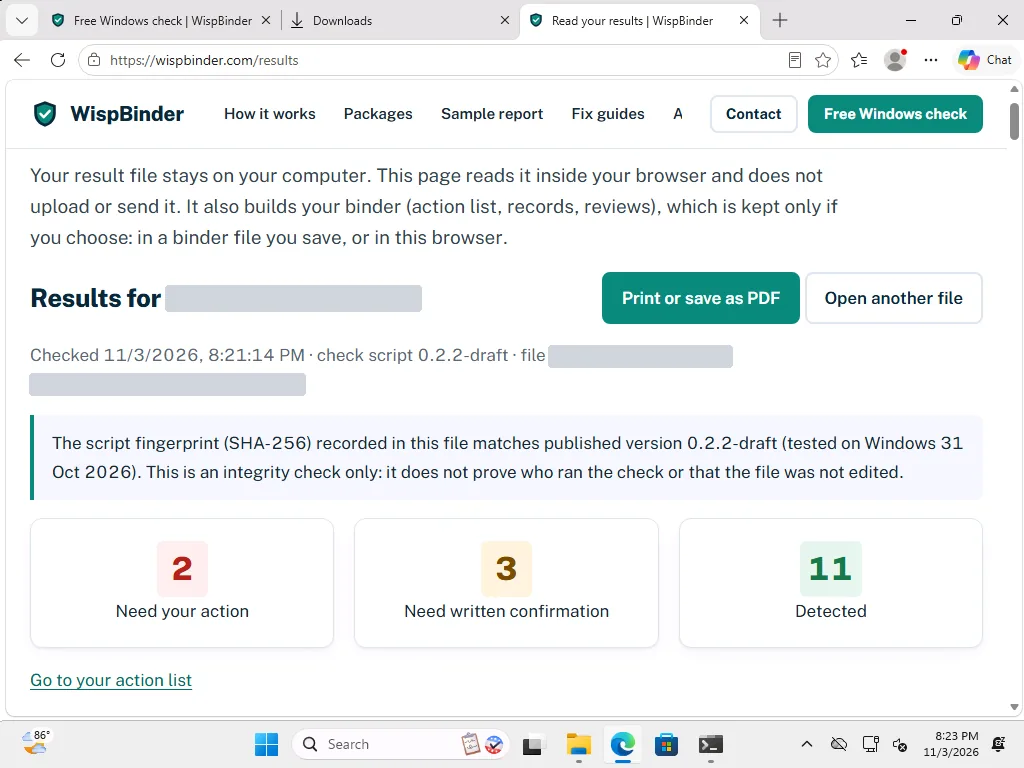
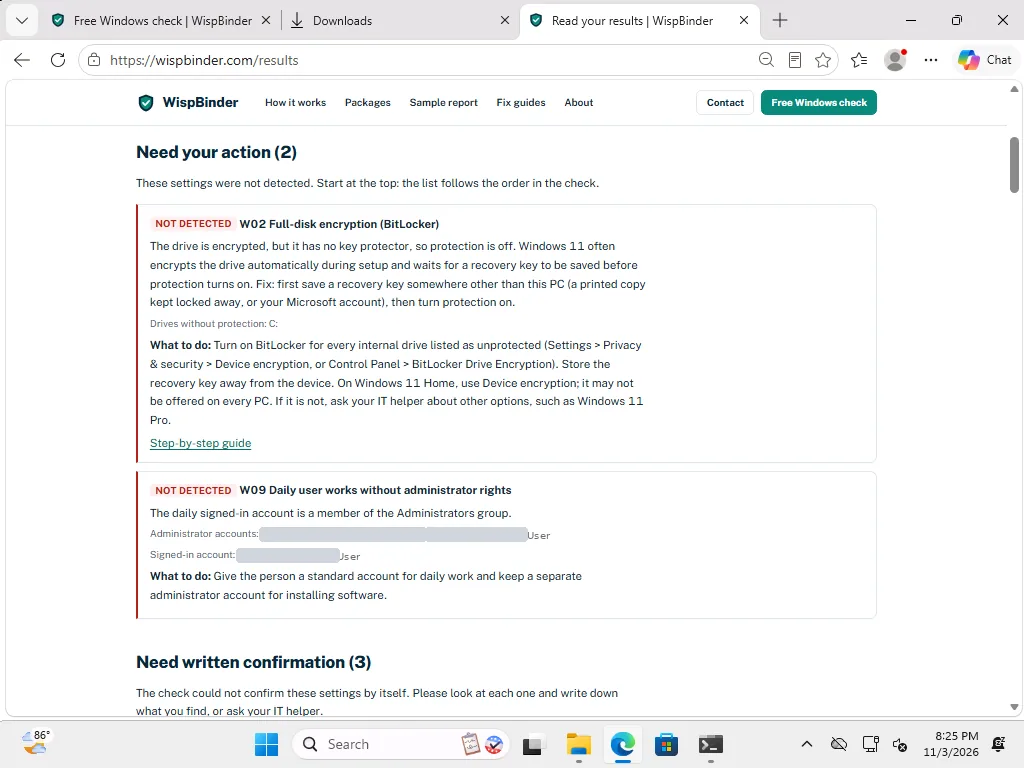
Tested so far: earlier launcher versions on Windows (v1 on 1 computer with Windows 11 Home; v3 on 1 Windows computer, 2 Nov 2026; v6 on 1 Windows 11 test computer, a virtual machine with Microsoft Edge, 3 Nov 2026, where the check completed, the waiting line showed the time, the time-limit message was confirmed with a test copy that stops waiting after 1 minute, and the security warning appeared twice). This version (v7): on the same Windows 11 test computer, 3–4 Nov 2026, with the file marked as downloaded from the internet, the security warning appeared once, the check completed after Yes, and clicking No stopped it cleanly. v7 changes only how the check asks for administrator permission; its waiting and time-limit steps are the same as v6. Pictures on this page are from the v6 test (the windows look the same in v7); account and computer names hidden.
For IT staff: read and verify the file
The launcher is a plain text file: open it in Notepad to read all of it. The check script inside it is identical to wisp-check.ps1; its SHA-256 is listed in releases.json and SHA256SUMS.txt. Before running the script, the launcher compares the script's SHA-256 with the value written in the launcher.
These hashes show whether a file was damaged or changed after it was published (an integrity check). They do not prove who made the file. The file is not code-signed yet.
Launcher v7, SHA-256: BFAB2CB0170AE8FA380196370BDC60EF73077B0218235BBA5FF88C5C888B4884
Prefer to run the script yourself? See verifying the script.
Questions, or prefer that we guide you on a call? Contact us.
Describes settings detected at the time of the check. Not an audit, not a certification, not legal advice.